
Manage your workspace
Use site settings
Review the options that belong to one website and its tracking connection.
What it is
Site settings hold the controls that apply to one website. This includes its display name, reporting timezone, connection state, tracking key and the site-level features that your role can manage.
Why use it
Use this page when you need to update site context, review setup, control tracking access or manage site-specific features.
Before you start
- You need Editor access or higher to change setup-related controls.
- Work in the correct site. Changes here do not apply to every site in the workspace.
How to use it
- 1
Open the correct site
From Sites, choose the website you want to manage and open Site settings.
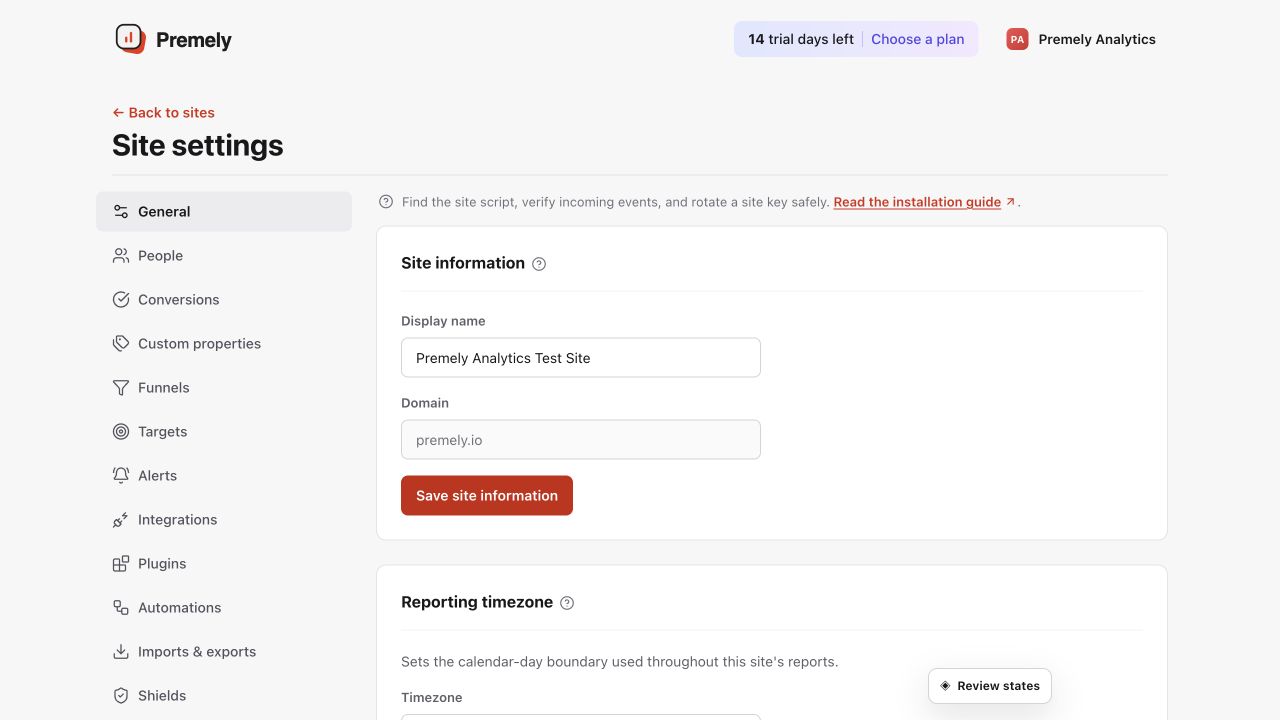
Confirm the selected site at the top of General settings before changing its controls. Shown in Premely with disposable demo data; your values will differ.
- 2
Review the basics
Check the display name, public domain, reporting timezone and connection state before changing anything else.
- 3
Use the relevant section
Open the section for goals, funnels, alerts, integrations, exports or privacy controls only when that is the task you need to complete.
- 4
Protect the tracking key
Rotate the key only when it may have been exposed or when a website change requires it. Copy the replacement key immediately because the complete value is shown once.
What to expect
Site-wide settings are scoped
A goal, export or key rotation belongs to one site. Switch sites before repeating the same work elsewhere.
Site controls stay scoped
Provider connections, exports and deletion controls apply to the selected site, not every site in the workspace.
Useful ways to apply this
A website rebuild
Review connection state and installation instructions after moving to a new theme or platform.
Shared website ownership
Use the settings page as the central place for the site controls your team is allowed to manage.