
Plugins
Install Premely with Google Tag Manager
Add the Premely Analytics tag, publish it on all pages and verify one clean pageview.
- Google Tag Manager

What it is
The Premely Analytics Google Tag Manager tag installs Premely through GTM's permissioned tag system. It supports pageviews and privacy-safe custom events without a Custom HTML tag, cookies or an API secret.
Why use it
Use this route when your team already manages marketing tags in Google Tag Manager and wants Premely under the same release workflow.
Before you start
- Create the site in Premely and copy its public site key and canonical hostname.
- Your Google Tag Manager web container must already be installed on the website. You need edit access to configure the tag and publish access to release it.
- Remove any direct Premely script, SDK or platform installer before you publish the GTM tag.
How to use it
- 1
Import and review the Premely template
Get
template.tplfrom the official Premely repository using the link below. On GitHub, use Download raw file for that file. In your GTM web container, open Templates, choose New under Tag Templates, open the editor's three-dot menu and choose Import. Select the downloaded file, confirm the Premely identity and review the two permissions, then choose Save.Get the official Premely template.tpl
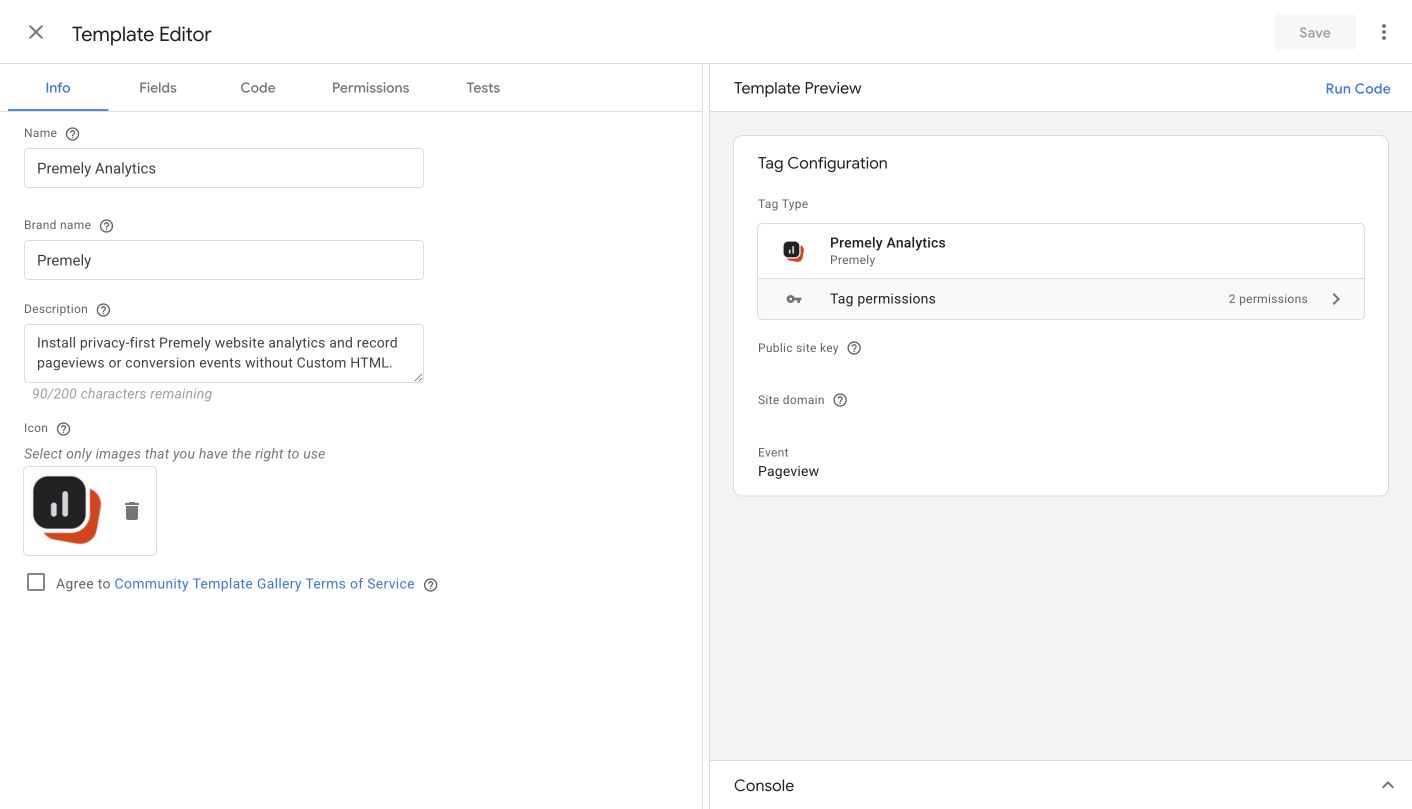
Captured from the live GTM Template Editor. The public site key and hostname are entered later on the tag.
- 2
Enter the site configuration
Open Tags, choose New, then select
Premely Analyticsunder Custom. Paste the public site key, enter the exact canonical hostname, choose Pageview and keep Respect the browser Do Not Track preference enabled.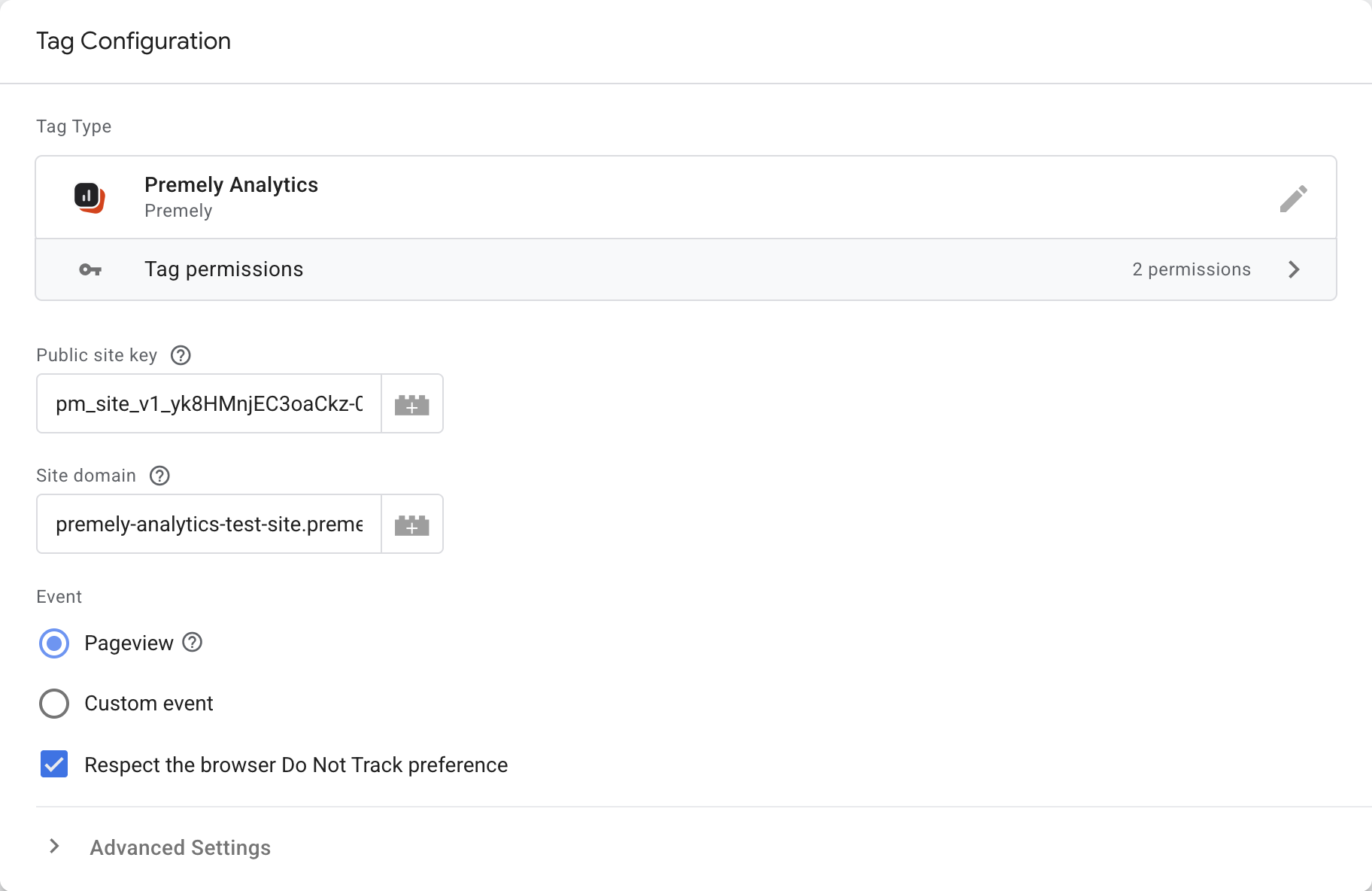
Enter the public key and hostname for your own Premely site. This is a test container, not a configuration to copy. Keep Pageview selected for the site-wide tag and leave Do Not Track enabled.
Google Tag Manager test container · Captured 2026-08-27
- 3
Use the initialization trigger
Open Triggering and select
Initialization - All Pages. Name the tag clearly, such as Premely Analytics - Pageview, then choose Save. Keep only one site-wide Premely pageview tag.
In Triggering, choose Initialization - All Pages. Use one site-wide Premely pageview tag, then save the tag before opening Preview.
Google Tag Manager test container · Captured 2026-08-27
- 4
Check the tag in Preview
Choose Preview in the GTM workspace. In Tag Assistant, enter your website URL and choose Connect. Visit a page in the opened website tab, then return to Tag Assistant and confirm the Premely tag is under Tags Fired. Check that no direct Premely install is running alongside it. Preview tests the workspace; it does not publish the tag for other visitors.
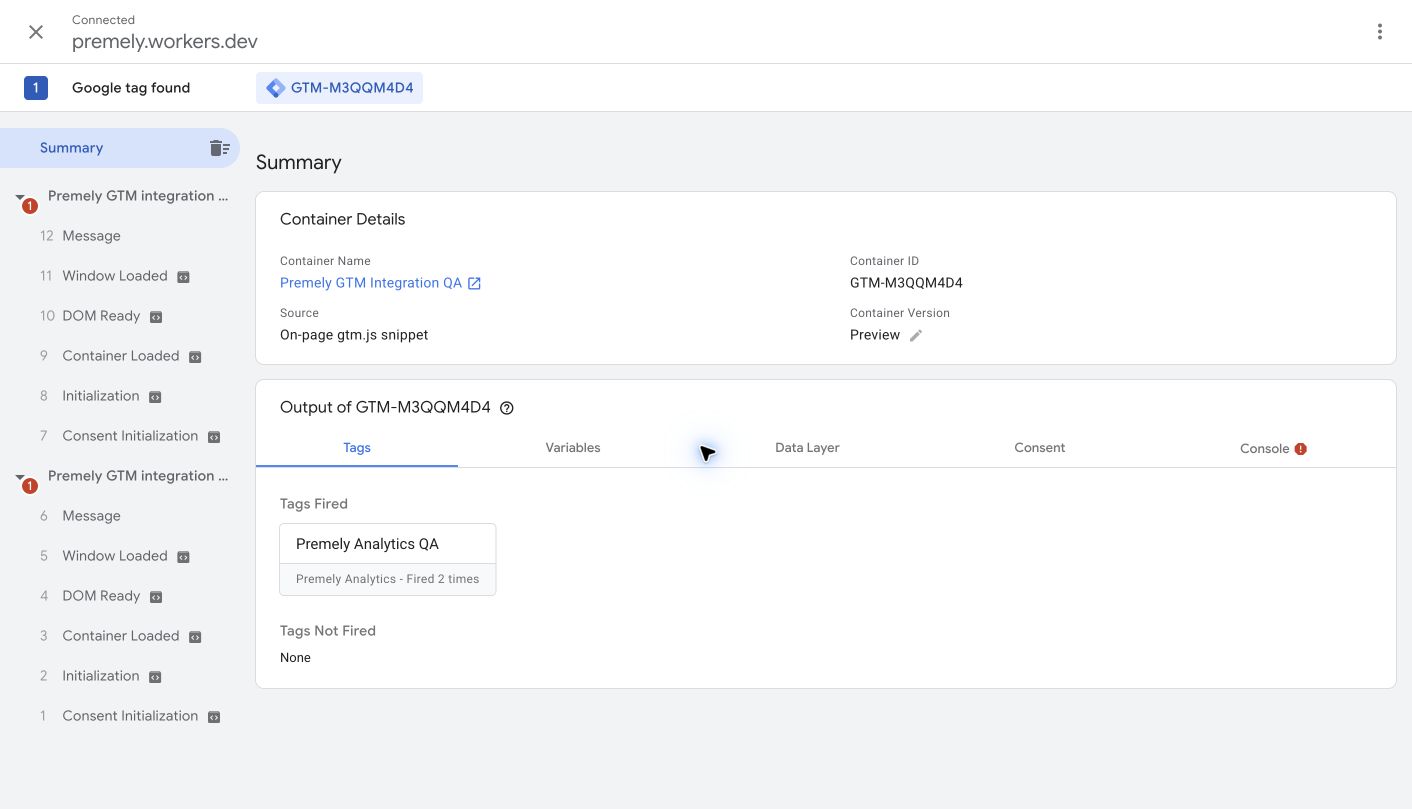
Captured during a real hosted GTM Preview connection. The fired count can increase when the preview page is reloaded.
- 5
Review and publish the container
Back in GTM, choose Submit. Keep Publish and Create Version selected, enter a Version Name and Version Description, and review Workspace Changes. If you use multiple environments, select the intended website environment. Choose Publish only when the changes are ready to go live. Create Version alone saves a version without publishing it.
Google: publishing and versions
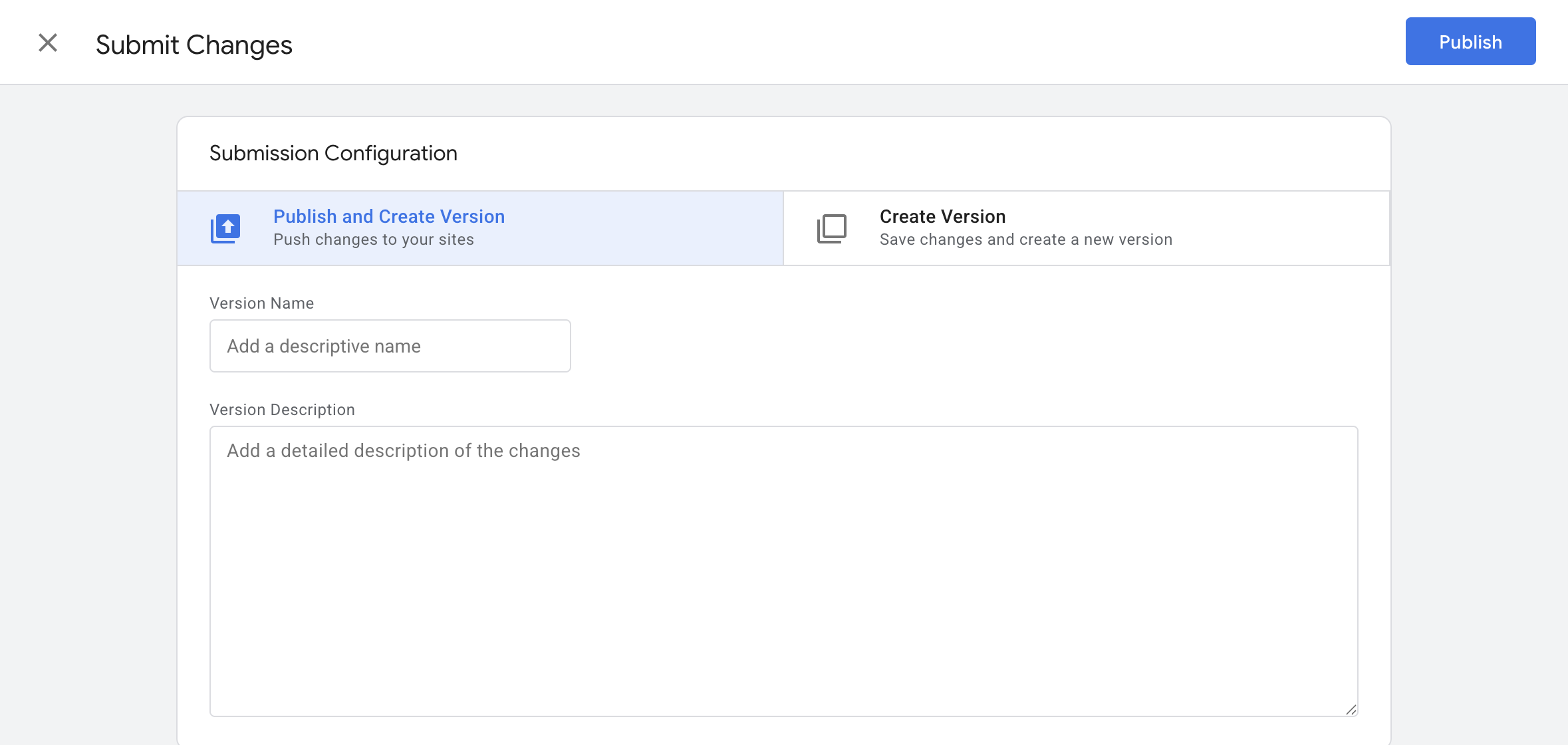
Submit opens this review screen; it does not publish by itself. Review your changes, enter a useful version name and description, then choose Publish when ready. No version was published for this capture.
Google Tag Manager test container · Captured 2026-08-27
- 6
Verify tracking in Premely
Open your published website outside the GTM preview session and visit a page. In Premely, open the matching site's installation check and verify the connection. Confirm the visit in Realtime. If Preview worked but the live site does not, check that the correct container version was published and that the container is installed on this hostname.
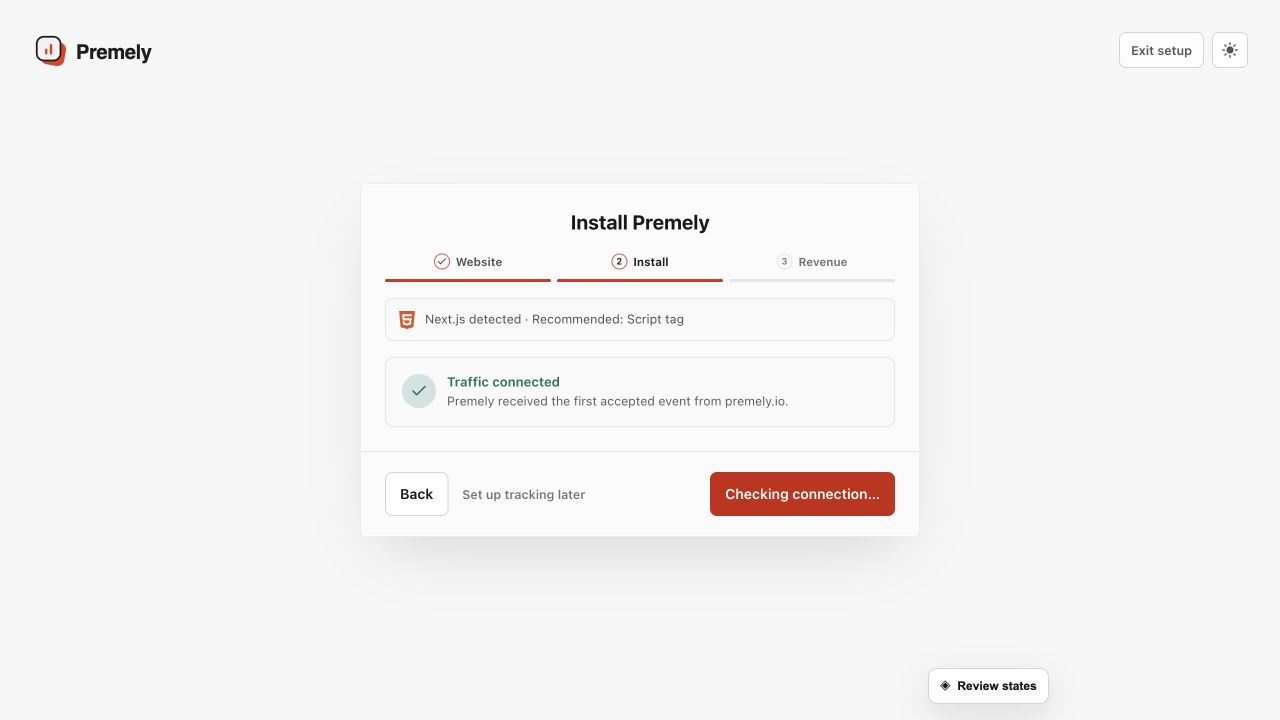
Use the successful connection state as the final installation check, then open the dashboard. Shown in Premely with disposable demo data; your values will differ.
What to expect
Use one Premely install only
Do not run a separate Custom HTML snippet or another Premely configuration alongside the GTM tag. Conflicting configurations stop rather than forwarding a pageview.
Custom events use a second tag
For a custom event, add another Premely Analytics tag, choose Custom event, use safe scalar properties and attach the appropriate GTM trigger.
Useful ways to apply this
A marketing team release
Preview the tag before publishing the container so the team can confirm one clean pageview without a code deployment.
A defined conversion action
Create one custom-event tag for a meaningful action, then make a Premely goal from the event name.