
Plugins
Install Premely on Shopify
Connect the native Premely Shopify app, verify its Web Pixel and confirm storefront analytics without editing your theme.
- Shopify

What it is
The Shopify app adds Premely analytics through Shopify's native Web Pixel path, including checkout-safe analytics, conversion events and revenue webhooks.
Why use it
Use this installer instead of the direct script path when your site runs on Shopify.
Before you start
- Use a Premely workspace where you are an owner or admin, then select the exact Shopify store as its Premely site.
- Remove any direct Premely script from the theme or custom code before you connect. Two active installations can duplicate pageviews and events.
- Check Google Tag Manager separately. Premely cannot inspect tags inside a GTM container, so remove any existing Premely tag there before you confirm the connection.
How to use it
- 1
Choose the native Shopify path
Open the selected site's setup in Premely. Under Installation method, choose
Connect Shopify. If automatic detection is unavailable, you can still choose this path manually.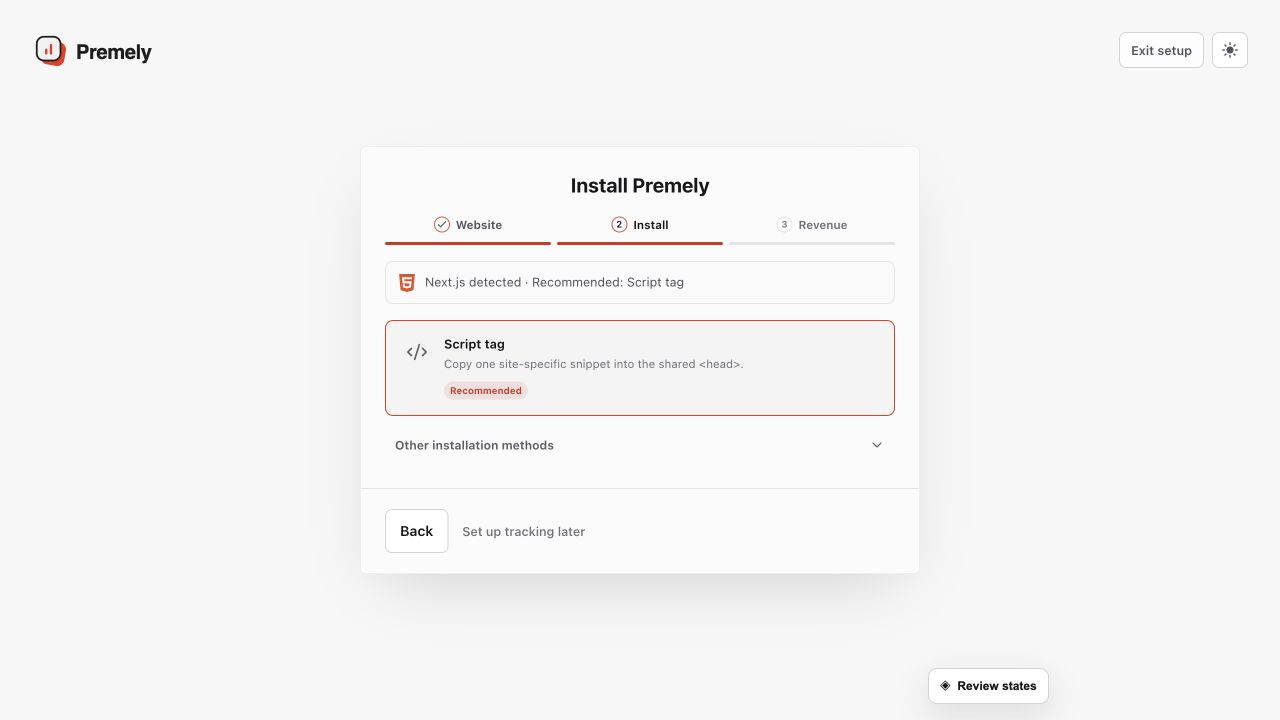
Choose one installation path for the site and avoid leaving a second Premely installation active. Shown in Premely with disposable demo data; your values will differ.
- 2
Enter the exact store domain
Enter the store's exact
your-store.myshopify.comdomain. Confirm that no direct Premely script remains and that Google Tag Manager does not contain another Premely tag, then selectConnect Shopify.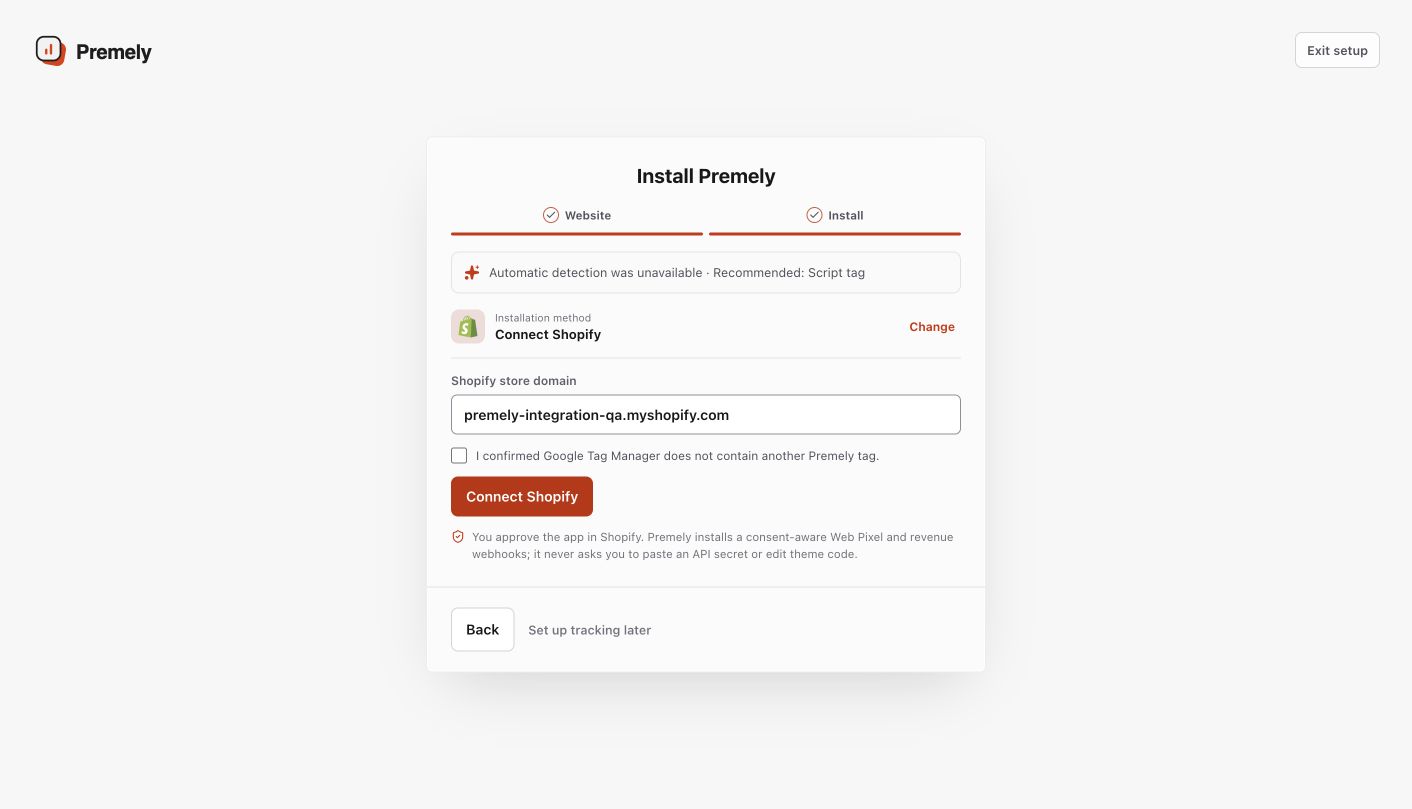
Captured from the live Premely Shopify QA setup. Select the native path only after removing any direct Premely script and checking the GTM container.
- 3
Approve Shopify, then check Customer events
Approve the Premely app for that same store in Shopify. When Premely returns, open Shopify Settings, then Customer events. The
Premely Analyticsrow must showWebandAlways onbefore you consider the pixel enabled.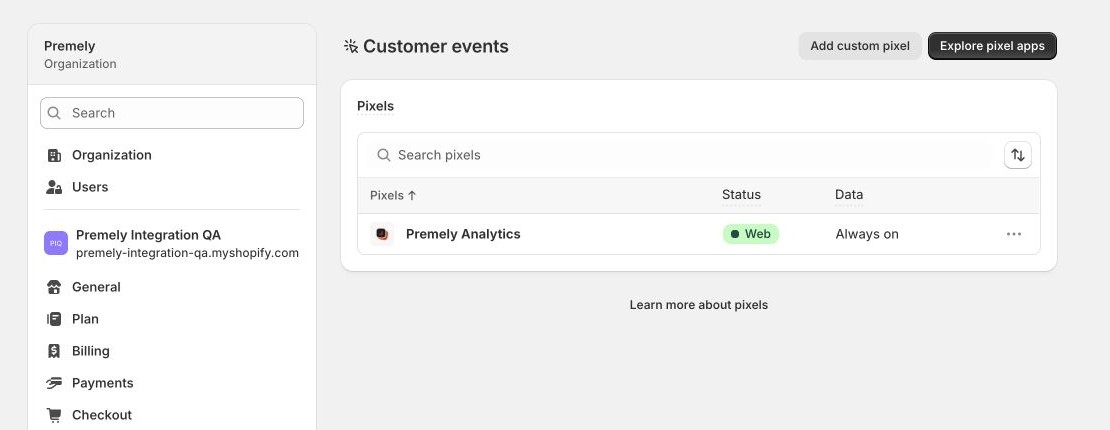
Captured from a disposable Shopify development store after a successful native authorization. Shopify shows the official Premely icon, Web Pixel type and Always on status.
- 4
Verify a real storefront visit
Open a public storefront page, then view a product and add it to cart. Return to Premely and confirm the connected state. You do not need to make a payment to verify the Web Pixel; revenue appears only after Shopify sends a real payment event.
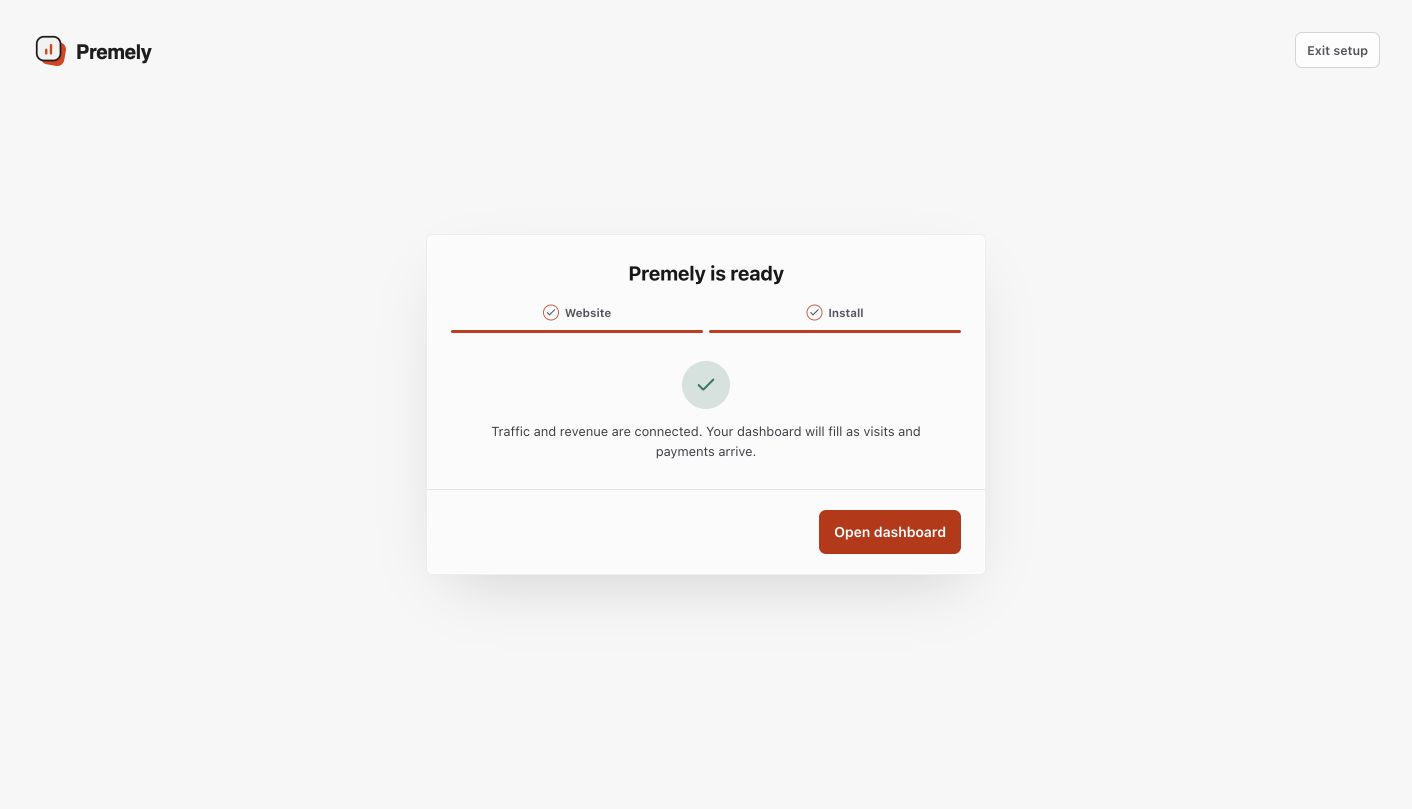
Captured after the native Shopify authorization returned to Premely. Open a public storefront page before relying on historical reports.
What to expect
No theme edit is required
The native Web Pixel path does not require a theme edit, a copied Premely site key or a Shopify API secret in the browser.
Switch methods cleanly
If you move from the direct script path to Shopify, remove the existing script first, publish the change and re-check Shopify Customer events before testing the storefront again.
Wait for reports before interpreting history
The connection state and Shopify's Always on pixel status confirm installation. Historical reports can take longer to refresh, so wait for the selected reporting surface to be available before interpreting historic visitor or revenue totals.